Video Compressor & Converter
- 4.5
- Rating
- 10.00M
- Installs
- Free
- Price

 Analysis by App-foxy
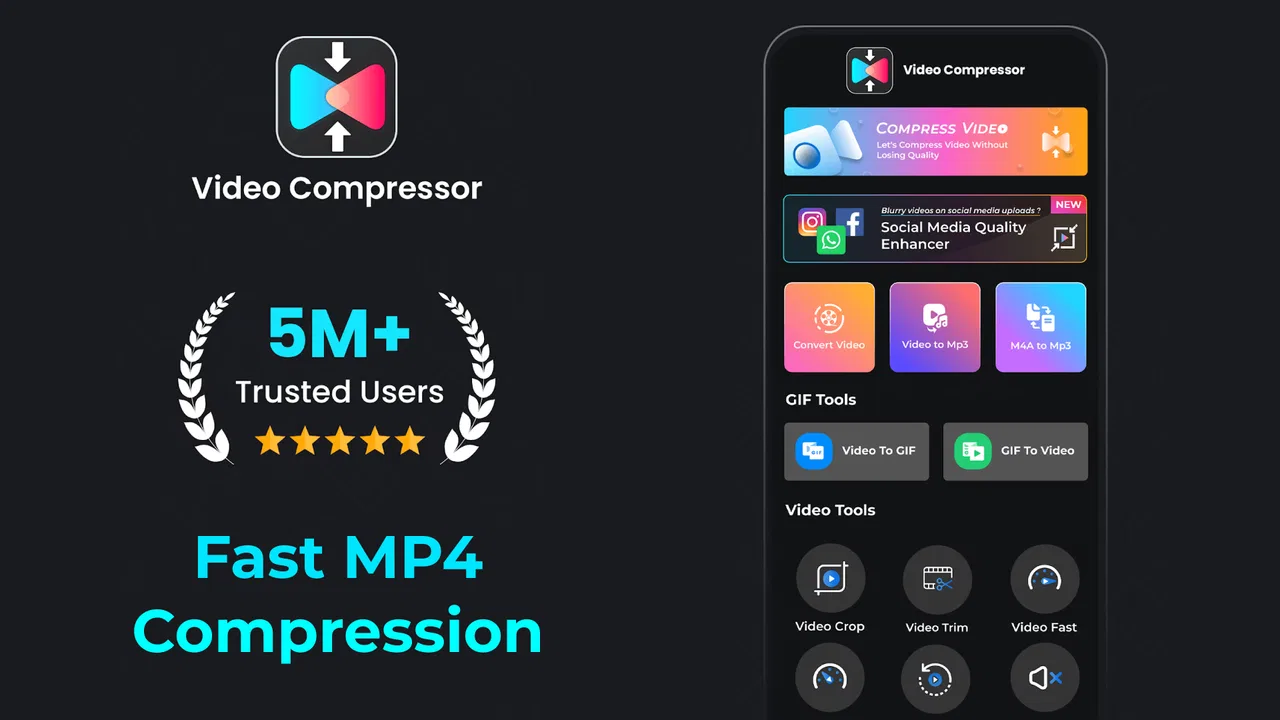
Video Compressor & Converter is the kind of Android app I reach for when a perfectly good video is simply too large, too wide, or in the wrong format for the person or service I need to send it to. Developed by TarrySoft, it sits in the video players and editors category, but its focus is practical rather than cinematic: compressing, converting, cropping, reducing, and reversing clips without turning the phone into a full editing workstation.
My first impression is that this is a utility for solving annoying video problems quickly. It is free to install, suitable for Everyone, and currently listed as version 4.0.0 for Android 7.0 and later. The app has built a substantial audience, with a 4.5 average from roughly 167 thousand ratings and more than 10 million installs. Those figures do not automatically make it the right choice for everyone, but they do suggest that its straightforward purpose has broad appeal.
Where connectivity changes the experience
The most important point about using this app is that the core work happens around the video on your device, while the consequences of that work often involve a network connection. Compressing a clip is useful because it can make sharing easier, but the actual sharing step may still depend on the messaging app, cloud service, or social platform you choose afterward. I found it helpful to think of the compressor as the preparation stage, not the complete delivery system.
You May Also Like

 Blood Strike: 2.5 Anniversary
Blood Strike’s Loadouts Turn Every Drop Into a Tactical Gamble
A close look at Blood Strike’s custom loadouts: how fast access to signature weapons reshapes its battle royale rhythm, rewards preparation, and narrows the gap between fights.

 Pandora - Music & Podcasts
Pandora’s Music Is Easy to Start, but Harder to Recover
Pandora’s strength is its low-effort path from a seed to a station. Its weak spot is how much confidence it asks you to place in connection, setup, and quiet recovery.

 8 Ball Pool
 Is Built on Rivalries, Rematches, and Routine
A close look at the rivalries, rematches, shared routines, and unanswered safety questions that turn a quick pool match into a persistent mobile community.

 Samsung Music
’s Quiet Strength Is Playing What You Already Own
Its reach comes less from spectacle than from dependable access to a personal library. That simplicity is both the app’s strongest retention engine and its ceiling.

 AccuWeather: Weather Radar
AccuWeather Review: A Quick, Clear Forecast for Everyday Decisions
For everyday plans, the best forecast is the one you can understand quickly. AccuWeather makes rain timing, radar, and local conditions easy to act on, with a few trade-offs.

 Hill Climb Racing
Why Hill Climb Racing Still Turns Crashes Into One More Run
A tiny car, a bumpy hill and one more upgrade: Hill Climb Racing keeps resurfacing because its simple chaos makes every near-miss feel personal.
More From Our News Desk



That distinction matters when you are in a place with weak reception. If a video is too large to send, reducing it before opening a chat can save frustration and avoid repeatedly attempting an upload. On the other hand, compression does not remove the need for connectivity when the final destination is online. A smaller file can upload more comfortably, but it cannot make an unavailable signal available.
The app is most useful when I decide what the video needs to do before I process it. If I only want to send a short clip to a friend, I can prioritize a smaller file. If I am keeping the result for later editing, I would be more conservative because aggressive compression can leave less visual information for the next editor. That simple decision prevents the common mistake of shrinking every video as much as possible.
Conversion has a similar relationship with connectivity. Changing a file into a more convenient format may help another app recognize it, but it does not guarantee that every platform will accept the result. Services often impose their own limits on duration, dimensions, file size, or supported formats. I would therefore use the converter to address a known compatibility problem, rather than converting blindly and hoping it solves every upload issue.
A realistic phone-to-chat workflow
Imagine recording a family event and ending up with a clip that is awkwardly large for a group conversation. My preferred workflow would be to select the original, decide whether the full frame is necessary, crop away irrelevant space if appropriate, and then compress a copy rather than immediately replacing the source. After checking the result, I would send the smaller version once the connection is stable.
This approach has two advantages. First, it keeps the original available if the compressed copy looks too soft or if I later need to edit the footage. Second, it separates creative decisions from network problems. Cropping can improve the composition, while compression addresses file weight; treating them as separate choices makes it easier to understand why the final clip looks or behaves differently.
Reverse video is another example of an effect that can be prepared before going online. It can turn a short action into a playful clip, but I would use it selectively. Reversing a long recording is rarely the best use of storage or processing time when the intended result is only a brief moment. Trimming the material first, when possible, is a more sensible habit than applying an effect to an entire event recording.
Mobile use is where the app makes the most sense
I see the strongest case for this app on a phone because videos are often created, reviewed, and shared from the same device. A desktop editor may offer more control, but moving a clip to a computer just to make it smaller can be excessive for a one-time message. This app is aimed at that middle ground between the phone’s basic gallery tools and a more involved editing suite.
It is particularly suitable for people who record in high quality but regularly need lighter copies. Parents sharing school performances, travelers sending short scenes from a trip, and small sellers preparing product demonstrations can all benefit from having compression and basic transformations close at hand. The value is not that it replaces professional editing; it is that it handles the practical step that often blocks sharing.
Still, mobile convenience has trade-offs. A phone screen makes it harder to judge fine detail, especially after compression. A clip that looks acceptable in a small preview may reveal blockiness, smeared text, or softened faces when viewed on a larger display. I would always inspect important footage at a useful zoom before deleting the original or sending the result to a wider audience.
Storage management also deserves attention. Creating a processed copy means the original and the new file may coexist, which is good for safety but less helpful when space is tight. I recommend naming or organizing the result immediately so that temporary exports do not become a confusing pile of similarly dated videos. The app can reduce individual file sizes, but it cannot replace a sensible habit for managing several versions.
Choosing compression without ruining the clip
The right compression level depends on what the viewer needs to see. For casual footage with movement, faces, or small lettering, an extreme reduction can be more damaging than expected. For a clip that will be watched briefly on a phone, a moderate reduction may be perfectly reasonable. I would start with the least aggressive option that solves the sharing problem, then reduce further only if the destination still rejects the file.
Resolution is part of that decision. A video can be made smaller by lowering its dimensions, but that is not always desirable. If the important subject is already distant, reducing the frame can make details disappear. Cropping can also reduce the amount of picture, yet it may improve the result when the original includes large empty areas. In my experience, the best file is not necessarily the smallest one; it is the smallest one that still serves its purpose.
There is a useful trade-off between a quick message and long-term storage. A compressed copy is sensible for immediate sharing, while the original is preferable for archiving or future editing. I would not use a heavily reduced export as my only copy of an irreplaceable recording. The app is a preparation tool, and its convenience should not encourage careless deletion.
What happens when a job goes wrong
Video processing is not always instant, particularly with long or demanding clips. If an export appears to take longer than expected, I would avoid repeatedly tapping the same command. Repeated attempts can create confusion about which file is current and may leave several partial or duplicate results. A calmer approach is to check the selected source, simplify the task, and try a shorter segment or a less demanding transformation.
When the final file does not look right, the failure may be a poor setting rather than a broken app. A blurry result suggests that the reduction was too strong; an awkward frame suggests that cropping was too aggressive; an unexpected compatibility issue may point to the chosen conversion format or to restrictions imposed by the destination service. I find it more useful to change one variable at a time than to compress, crop, convert, and reverse everything in one pass.
Network problems can make diagnosis especially confusing. A failed upload after successful processing does not necessarily mean the export failed. I would first open the processed file locally and play it from beginning to end. If it plays correctly, the next step is to retry the share or upload through the target service when the connection is more reliable. Separating local playback from online delivery is the simplest recovery habit.
For important footage, I would also keep the original until the processed copy has been checked and delivered successfully. This is one of the most practical safeguards when working from a phone, where a rushed cleanup can be difficult to undo. A smaller file is valuable only if it remains usable, and a successful export is not the same thing as a confirmed upload.
Using less data without losing control
Although the app’s main purpose is file processing rather than connection management, it can support a more data-conscious routine. Preparing a smaller video before sending it may reduce the amount that the messaging or storage service needs to transfer. That can be useful on a limited mobile plan, especially when several recipients would otherwise download a large attachment.
I would avoid processing every clip automatically just to save data. Compression takes time and may reduce quality, so it makes more sense when the original is clearly excessive for its destination. A short personal message, a long recording for backup, and a public upload each deserve different treatment. The app gives me a way to adapt the file, but I still need to make the judgment.
A good method is to create purpose-specific copies. One version can be compact enough for a chat, another can retain more detail for later use, and the untouched original can remain as the archive. This may sound cautious, but it prevents the false economy of saving transfer data today and then discovering that the only remaining copy is too degraded for tomorrow’s needs.
In-app purchases range from $0.99 to $99.99 per item, so I would pay attention to any optional upgrade or extra purchase shown during use before committing. The app itself is free, which makes it easy to test the basic workflow first. I would only spend money if the available tools solve a recurring problem for me; occasional users may find the free starting point sufficient, while frequent editors should judge the value against the controls they actually need.
How it compares with the usual alternatives
The built-in gallery or photos app is often enough for trimming and simple sharing, but it may not provide the same focused combination of compression, conversion, cropping, and reversal. If the only task is cutting the beginning and end of a clip, opening a separate utility may be unnecessary. The advantage here appears when the problem is file size or format rather than basic trimming.
Full mobile editors are better when I need layered sound, titles, transitions, color adjustments, or a carefully arranged sequence. They offer more creative control, but that control can make a simple export feel slow and complicated. Video Compressor & Converter is more appealing when I already have the clip and only need to make it manageable or apply one practical change.
Desktop software remains the stronger choice for batch work, precise encoding decisions, and professional projects. A computer can provide a larger preview and more dependable control over a complicated production. I would choose this app instead when speed, portability, and a single troublesome clip matter more than fine-grained editing.
That positioning is important: this is not an all-purpose replacement for a serious editor. Its strength is reducing the distance between recording and sharing. Its weakness is that users wanting detailed visual control may quickly outgrow a focused utility, particularly if they need consistent results across many files.
Who should install it, and who should skip it
I would recommend it to anyone who frequently hears that a video is too large, encounters a format problem on a phone, or wants quick access to cropping and reversal without learning a complete editing system. It is also a sensible option for people who share footage while traveling, because preparing the file before attempting an upload can make a poor connection less painful.
I would be more cautious about recommending it to filmmakers, social media professionals, or anyone who needs exact control over encoding and repeated batch exports. Those users may prefer a dedicated editor or desktop workflow. I would also skip it if my only requirement were occasional trimming and my existing gallery app already handles that comfortably.
The free entry point makes testing straightforward, and the Everyone age rating keeps the app broadly accessible. At the same time, the presence of optional purchases means I would review each screen carefully rather than assuming every capability is included without conditions. The current release is version 4.0.0, but my practical advice remains the same: test it with a nonessential clip first and inspect the result before trusting it with valuable footage.
My connectivity verdict
After using it as a focused video utility, I see its main benefit in preparation. It can help turn a difficult-to-send clip into a more reasonable attachment, change a file when another app refuses to handle it, or add a simple reverse effect before the video reaches an online service. Those jobs are small, but they are common enough to justify keeping a dedicated tool available.
The connection itself is still part of the larger experience. The app may help reduce the burden of sharing, but it cannot guarantee a successful upload, bypass a platform’s rules, or replace a stable network. My most reliable routine is to process a copy, play it locally, keep the original until delivery is confirmed, and send the result when the connection is ready.
My recommendation is simple: choose Video Compressor & Converter when your main obstacle is getting an existing clip into a smaller, more compatible, or more playful form. It is less convincing as a substitute for a complete editor, but for everyday mobile sharing, its focused approach is useful. TarrySoft’s app earns its place when a video is fine as recorded yet inconvenient as a file.
FAQs for Video Compressor & Converter
01What features does Video Compressor & Converter offer?
Video Compressor & Converter provides a range of features designed to optimize your video files. You can compress videos to save storage space without compromising quality. The app supports various formats and offers conversion options to ensure compatibility with different devices. Batch processing and custom settings for resolution and bitrate are also available.
02Is Video Compressor & Converter easy to use for beginners?
Yes, the app is designed with user-friendliness in mind, featuring an intuitive interface that guides users through the compression and conversion process. Beginners will find the step-by-step instructions and preset options helpful, while advanced users can customize settings for precise control over output quality and file size.
03Does the app support all video formats?
Video Compressor & Converter supports a wide range of popular video formats, including MP4, AVI, MOV, and MKV. This ensures that you can work with almost any video file you have. However, it's always a good idea to check the app's supported formats list for any specific requirements you might have.
04What are the pros and cons of using this app?
Pros include its user-friendly interface, support for multiple formats, and efficient compression that maintains video quality. It also offers batch processing for convenience. On the downside, some users might find the advanced features overwhelming, and the free version may have limitations like ads or watermarks on output files.
05Is there a cost associated with using Video Compressor & Converter?
Video Compressor & Converter is available as a free download, but it may offer in-app purchases or a premium version. The free version might come with limitations such as ads or restricted features. Upgrading to the premium version usually removes these limitations and provides additional features, such as faster processing speeds and more format options.
Pros
- User-friendly interface for easy navigation.
- Supports numerous video formats for conversion.
- Fast compression without quality loss.
- Batch processing saves time on multiple files.
- Customizable settings for output quality.
Cons
- Contains ads that may disrupt workflow.
- Limited features in free version.
- Requires internet for some functions.
- Occasional crashes on older devices.
- Lacks advanced editing tools.

Video Compressor & Converter
Gallery